

Ads
Ads
This guide provides systematic methods to identify, diagnose, and resolve common Wi-Fi connectivity problems, including signal weakness, slow speeds, and intermittent connections.
Ads
Few things are more frustrating than a Wi-Fi connection that drops at the worst possible moment. Whether you’re in the middle of an important video call, streaming your favorite show, or trying to finish work on a deadline, Wi-Fi problems can derail your entire day. The good news is that most common Wi-Fi issues have straightforward solutions that don’t require a degree in computer science.
In this guide, we’ll walk you through a systematic approach to troubleshooting common Wi-Fi issues. You’ll learn how to identify the root cause of your connectivity problems, apply targeted fixes, and prevent future issues. By the end, you’ll have the confidence to handle most Wi-Fi challenges that come your way.
Understanding Your Wi-Fi Network Basics
Before diving into troubleshooting, it’s helpful to understand how your home Wi-Fi network actually works. Your internet service provider delivers a signal to your home through a modem, which connects to a router. The router then broadcasts that connection wirelessly to your devices, whether they’re smartphones, laptops, smart TVs, or tablets.
The router serves as the central hub of your wireless network, and most problems originate from one of three areas: the modem connection, the router itself, or the interaction between your devices and the router. Understanding this flow helps you pinpoint where to focus your troubleshooting efforts.
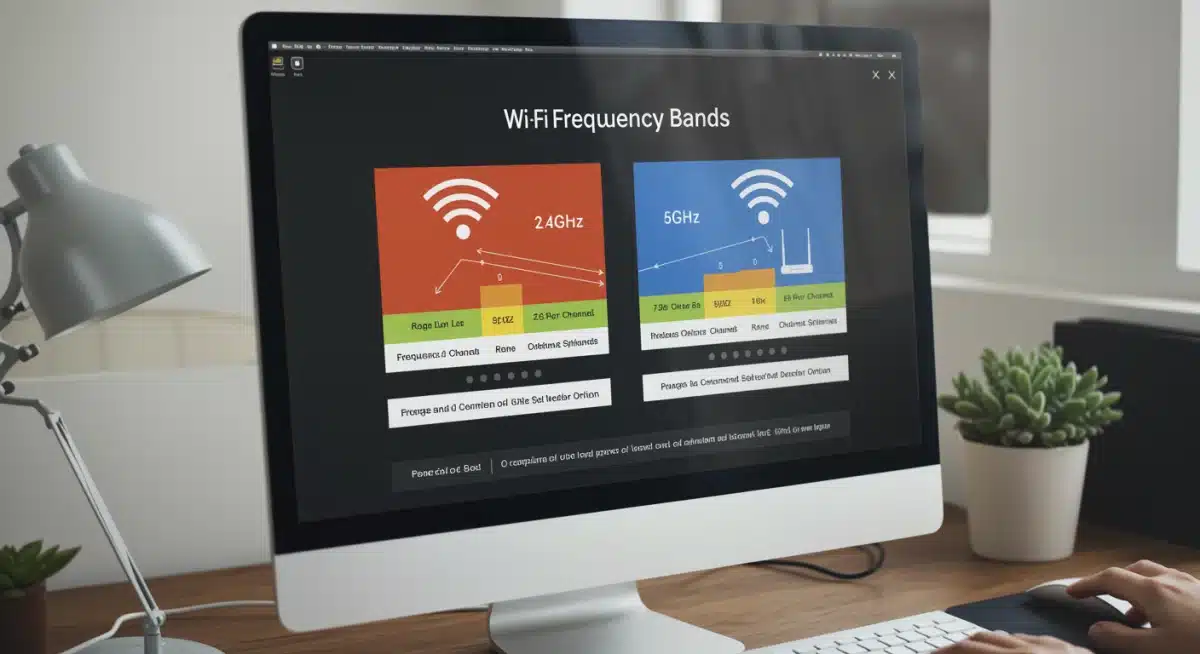
Modern routers typically operate on two frequency bands: 2.4 GHz and 5 GHz. The 2.4 GHz band offers better range but slower speeds, making it ideal for devices far from the router or those that don’t need lightning-fast connections. The 5 GHz band provides faster speeds but has a shorter range, perfect for bandwidth-intensive activities like streaming or gaming near the router.
Key Components of Your Network
- Modem: The device that connects your home to your internet service provider’s network
- Router: The device that creates your local Wi-Fi network and manages traffic between devices
- Frequency bands: The radio waves your router uses to transmit data (2.4 GHz and 5 GHz)
- Channels: Smaller subdivisions within each frequency band that help reduce interference
When something goes wrong with your Wi-Fi, these components are usually the culprits. Now let’s examine how to identify specific issues.
Diagnosing Connection Problems
The first step in troubleshooting is accurately diagnosing what’s actually wrong. Many people assume they have a Wi-Fi problem when the issue lies elsewhere, so taking a systematic approach saves time and frustration. Start by answering a few basic questions: Does the problem affect all devices or just one? Does it happen at specific times of day? Is the issue constant or intermittent?
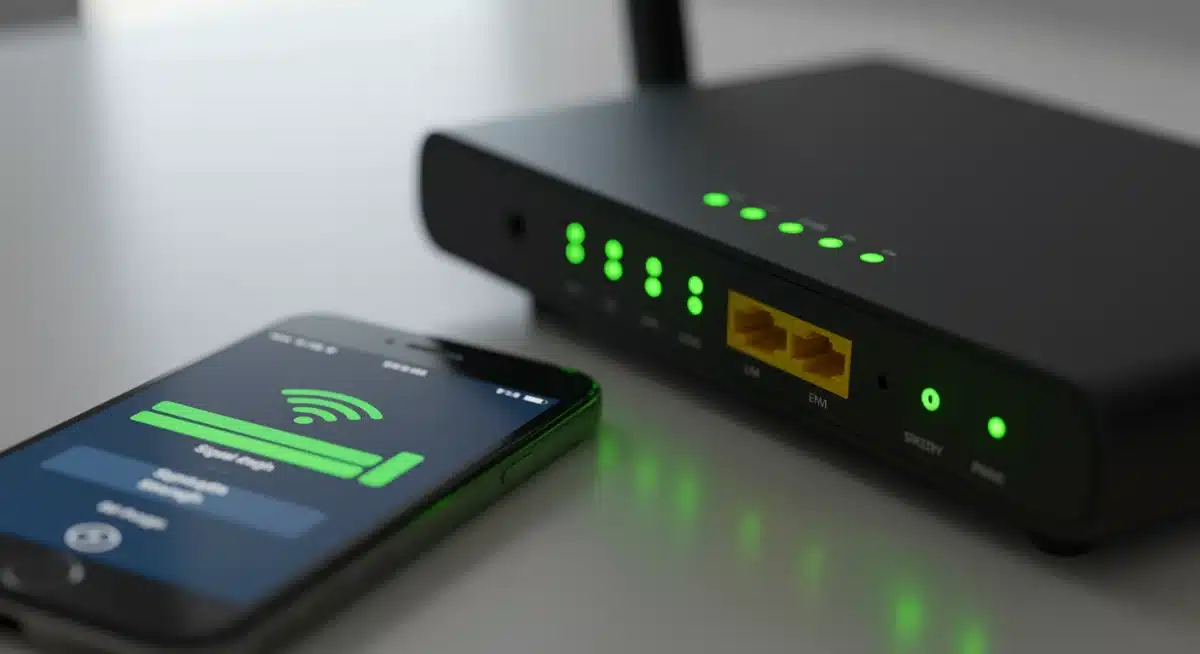
Begin by checking your router’s indicator lights. Most routers have LED lights that show power, internet connection, and wireless activity. A solid green light typically means everything is working normally, while amber or red lights often indicate problems. If you see unusual light patterns, consult your router’s manual to understand what they’re telling you.
Next, test your connection speed using a service like Speedtest.net. Run the test with your device connected via Wi-Fi, then connect your computer directly to the router with an Ethernet cable and run the test again. Comparing these results helps you determine whether the problem is your Wi-Fi signal or your internet service itself.
Common Symptoms and What They Indicate
- No connection: Often indicates a problem with your modem or router, or an outage in your area
- Slow speeds: Could result from signal interference, too many devices, or bandwidth-heavy activities
- Intermittent dropping: Frequently caused by signal interference, outdated firmware, or overheating
- High latency: Usually indicates network congestion or problems with your ISP
Document what you observe. Writing down when problems occur, what devices are affected, and any patterns that emerge makes it easier to identify the root cause and apply the right fix.
Fixing Weak Signal and Range Issues
Weak Wi-Fi signal is one of the most common complaints among users. You might have full bars on your phone but still experience buffering, or certain rooms in your home might have no signal at all. This problem typically stems from distance, physical obstacles, or interference from other devices.
Start by repositioning your router. The ideal location is central in your home, elevated off the ground, and away from thick walls or metal objects. Router signals struggle to penetrate concrete, metal, and even water-filled objects like fish tanks. If your router is tucked away in a corner closet, moving it to a more central location often provides immediate improvement.
Consider your router’s antenna positioning. If your router has external antennas, point them in different directions to cover more area. Some routers have internal antennas, in which case placement becomes even more critical. Experiment with a few different positions, testing signal strength in various rooms each time.
If repositioning doesn’t solve the problem, you might need to extend your network’s range. Wi-Fi extenders capture your existing signal and rebroadcast it to cover dead zones. Mesh systems offer a more elegant solution, using multiple nodes that work together to create seamless coverage throughout your home. While extenders can work well, they often create separate network names, requiring you to manually switch between networks as you move around your home.
Addressing Slow Speeds and Buffering
Nothing tests your patience quite like a video that buffers every few seconds or a webpage that takes forever to load. Slow Wi-Fi speeds can stem from multiple causes, but the good news is that most have relatively simple solutions. The key is identifying which factor is actually bottlenecking your connection.
Start by checking how many devices are connected to your network. Each device consumes bandwidth, and when too many devices are actively using your Wi-Fi simultaneously, speeds drop for everyone. Modern households might have smartphones, tablets, laptops, smart TVs, gaming consoles, and IoT devices all competing for the same bandwidth. Identify which devices are currently active and consider disconnecting ones you aren’t using.
Your frequency band selection significantly impacts speed. If you’re on the 2.4 GHz band, switching to 5 GHz can provide a substantial speed boost, assuming your devices support it and you’re close enough to the router. The 5 GHz band is less crowded and offers faster theoretical speeds, though it doesn’t reach as far as 2.4 GHz.
Optimizing Your Network for Speed
- Restart your router: This clears memory and refreshes the connection, often resolving temporary slowdowns
- Update router firmware: Manufacturers release updates that can improve performance and security
- Change Wi-Fi channels: If neighbors use the same channel, switching can reduce congestion
- Limit background activities: Cloud sync services and automatic updates can consume significant bandwidth
If you’ve optimized everything and still experience slow speeds, contact your internet service provider. There might be issues on their end, or they might be able to diagnose whether you’re getting the speeds you’re paying for.
Resolving Intermittent Connection Drops
Intermittent connection problems are particularly maddening because they seem to come and go unpredictably. One moment your connection is fine, the next it’s dropped, and you’re left wondering what happened. These issues often have specific triggers that you can identify with a bit of detective work.
Interference from other wireless devices is a common culprit. Cordless phones, microwave ovens, baby monitors, and even neighboring Wi-Fi networks can disrupt your signal. If problems occur primarily during certain activities like cooking or talking on a cordless phone, you’ve likely found your culprit. Switching to the 5 GHz band can help, as it faces less interference from these devices.
Overheating can also cause routers to drop connections. If your router feels hot to the touch, ensure it has adequate ventilation. Don’t stack it with other electronics, and consider using a small fan to improve airflow. Some routers are more prone to overheating than others, so check the manufacturer’s recommendations for operating conditions.
Outdated router firmware frequently causes connection instability. Router manufacturers regularly release updates that fix bugs and improve reliability. Access your router’s admin panel through your web browser, check for available updates, and install any that are pending. While you’re there, note the firmware version so you can check periodically for new releases.
Troubleshooting Specific Device Issues
Sometimes the problem isn’t your network at all—it’s how your specific device connects to it. Individual devices can develop connection issues even when everything else works perfectly. Learning to troubleshoot device-specific problems saves you from unnecessarily adjusting your entire network.
Start by forgetting the network on the problematic device, then reconnect from scratch. This clears any corrupted settings or saved credentials that might be causing issues. On most devices, you find this option in Wi-Fi settings under the network name, where you’ll select “Forget This Network” before searching for it again and entering your password.
If problems persist on a single device, check for software updates. Outdated operating systems or network drivers often cause connectivity issues. On computers, make sure your network adapter drivers are current. On smartphones and tablets, ensure your OS is up to date through your device settings.
Some devices simply have better Wi-Fi hardware than others. Older devices might not support newer Wi-Fi standards, limiting their performance. If you have an older laptop or phone that struggles while newer devices work fine, the hardware might be the limitation rather than your network. In these cases, using an external Wi-Fi adapter can provide a significant improvement.
Device-Specific Troubleshooting Steps
- Smartphones: Toggle airplane mode on and off, forget network and reconnect, reset network settings if problems persist
- Laptops: Update network drivers, run the network troubleshooter, disable and re-enable the wireless adapter
- Smart TVs: Restart the TV, check for firmware updates, consider wired connection if available
- Gaming consoles: Test with wired connection to isolate Wi-Fi issues, prioritize traffic on router if supported
Remember that devices vary significantly in their Wi-Fi capabilities. A flagship phone from the past few years will typically perform much better than a budget device from several years ago, even on the same network.
When to Call Your Internet Service Provider
Despite your best efforts, some Wi-Fi issues require professional intervention. Knowing when to contact your internet service provider saves you from wasting time on problems you can’t resolve on your own. There are clear signs that indicate the issue lies outside your home network.
If you’ve restarted your router and modem, checked for outages in your area, and verified your account is in good standing, but you still have no internet connection, it’s time to call. Similarly, if your speeds consistently fall far below what you’re paying for, despite optimizing your network, your provider might need to investigate their infrastructure.
When you do call, be prepared to describe what you’ve already tried. This helps the support representative guide you through additional steps or determine whether a technician visit is necessary. They might identify issues like line problems, account configuration errors, or equipment failures that aren’t apparent from your end.
Some providers offer premium support as an add-on service. If you find yourself frequently dealing with Wi-Fi issues and have the budget, this might be worth considering. You get dedicated support channels and often faster response times when problems arise.
Preventing Future Wi-Fi Problems
The best troubleshooting is prevention. Once you’ve resolved your current Wi-Fi issues, taking a few proactive steps helps maintain reliable connectivity going forward. A little maintenance goes a long way toward avoiding future frustrations.
Schedule regular router restarts—once a month is typically sufficient for most households. This clears accumulated data, refreshes the connection, and can prevent the slow degradation that sometimes occurs over time. Many routers now support scheduled restarts through their mobile apps, making this set-it-and-forget-it maintenance effortless.
Keep your router’s firmware updated. Manufacturers continuously improve their products, and firmware updates often include performance enhancements and security patches. Check your router manufacturer’s website periodically or enable automatic updates if your router supports that feature.
Monitor your network for unfamiliar devices. Most router apps show you what’s connected at any given time. If you see devices you don’t recognize, it might mean someone is using your Wi-Fi without permission, which can slow your connection. Secure your network with a strong password and consider hiding your network name for additional privacy.
Maintenance Checklist
- Monthly: Restart router, check for unfamiliar devices, test connection speeds
- Quarterly: Check for firmware updates, review password security, assess whether your plan still meets your needs
- Annually: Evaluate whether your router still meets performance needs, consider upgrades if necessary
Technology evolves rapidly, and a router that worked perfectly a few years ago might now be a bottleneck. If your household’s internet usage has increased significantly or you’ve added many new devices, upgrading to a newer router with better performance can make a substantial difference.
Summary Table
| Common Issue | Quick Solution |
|---|---|
| Weak Signal | Reposition router centrally, use Wi-Fi extenders or mesh system |
| Slow Speeds | Switch to 5GHz band, limit connected devices, restart router |
| Connection Drops | Check for interference, update firmware, ensure proper ventilation |
| No Internet | Restart modem and router, check for outages, contact ISP if needed |
Frequently Asked Questions
Random disconnections often stem from interference from other devices like microwaves or cordless phones, outdated router firmware, or overheating. Try switching to the 5 GHz band, updating your router’s firmware, and ensuring it has adequate ventilation. If problems persist, your router may be failing and need replacement.
Outdoor Wi-Fi coverage typically requires additional equipment since router signals struggle to reach far beyond your home’s walls. Wi-Fi extenders placed near windows or exterior walls can help, or consider a mesh system with outdoor-compatible nodes. For larger yards, a dedicated outdoor access point mounted under eaves or on poles provides the best coverage.
Try restarting your current router first—it’s surprising how often this resolves persistent issues. If your router is more than five years old, struggles with multiple devices, or lacks modern features like dual-band support, upgrading makes sense. Newer routers handle more devices better and offer improved range and security.
This usually indicates a difference in Wi-Fi hardware capabilities. Newer phones support faster Wi-Fi standards (like Wi-Fi 6), while older laptops may only support older standards. Your laptop’s wireless adapter might also be outdated or have poor antenna design. Consider using a USB Wi-Fi adapter on the laptop for better performance.
Yes, especially on the 2.4 GHz band which has limited channels. When many nearby networks use the same channel, congestion occurs and speeds drop. Switch to the 5 GHz band which has more available channels and typically less competition. You can also change your channel manually to find a less crowded one using your router’s settings.
Conclusion
Wi-Fi problems don’t have to ruin your day. With a systematic approach to troubleshooting, you can identify and resolve most common connectivity issues on your own. Remember to start with the basics—checking indicator lights, testing speeds, and restarting equipment—before moving to more advanced solutions. Understanding your network’s components and how they interact gives you the foundation to diagnose even tricky problems.
The key is patience and methodical testing. Try one solution, verify whether it works, and move to the next if needed. Most issues fall into a few predictable categories: weak signal, slow speeds, or connection drops, each with their own set of potential fixes. By following this guide, you now have the tools to handle Wi-Fi challenges confidently and keep your home network running smoothly.
